A video looks stretched when its width and height are changed disproportionately. Faces become unusually broad, circles turn oval and product shapes become unreliable. Changing a landscape clip into a vertical deliverable does not require distorting it. Decide how the source should fit the destination, then verify the result in the actual exported file.
Separate frame shape from pixel count
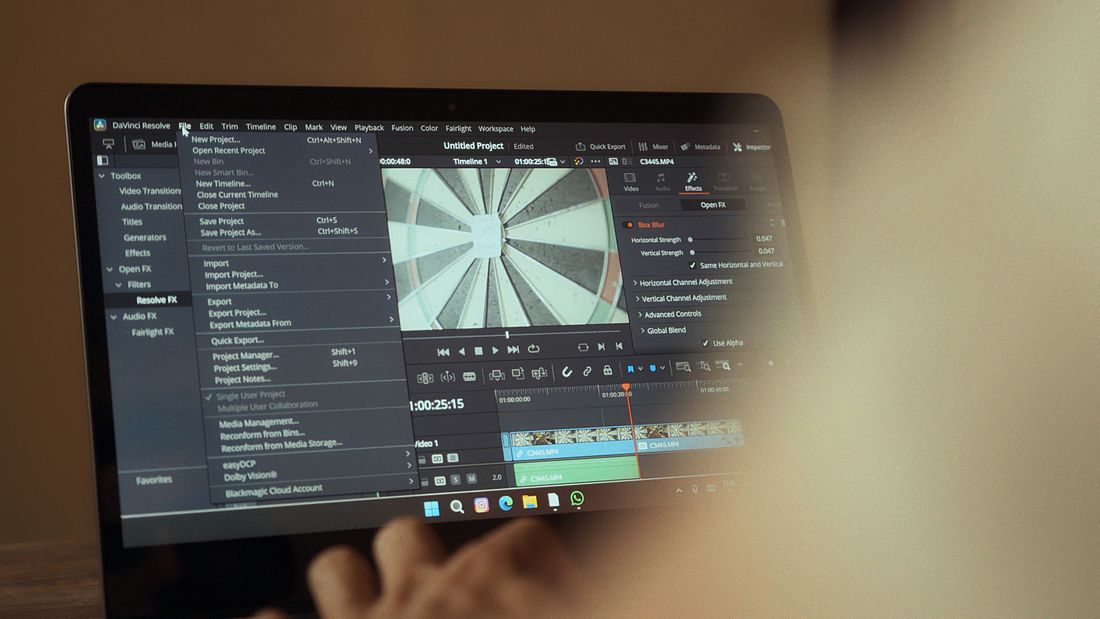
Aspect ratio describes the relationship between width and height; resolution describes the number of pixels. A larger export with the same shape need not stretch an image, while forcing a wide source to fill a tall frame can do so if its proportions are not preserved. Check the source and sequence settings before export. If the clip already appears squeezed in the editor, investigate its interpretation rather than expecting an export preset to repair it automatically.
Choose a fitting method with a reason
Fitting the complete source inside a differently shaped frame may leave empty areas. Filling the frame while preserving proportions crops part of the image. Neither is automatically wrong. A demonstration may need the complete work area, while a portrait can permit a tighter crop if the face and gesture remain readable.
Reposition the crop for the important action instead of accepting a centred crop blindly. If that cannot preserve necessary information, create another layout or use suitable footage rather than stretching the original.
Check unusual source interpretation
Some footage requires correct pixel-aspect or other interpretation settings. Adobe’s troubleshooting documentation notes that incorrect pixel-aspect interpretation can make video appear squeezed or stretched. Consult the recording and editing documentation for that specific media instead of changing random scale controls. Ordinary square-pixel footage and specialised sources should not be assumed to need identical adjustments. Keep your source untouched and make changes in the project where they can be compared or reversed.
Inspect the deliverable itself
Export a short representative section first. Open it in a separate player and inspect faces, circles, text and the limits of the frame. Check the reported dimensions and compare the image with your intended layout. Then review the full export, since a later clip may have a different source shape. Name versions by destination and keep a master that preserves the intended composition. A correct-looking thumbnail does not establish that every clip in the file uses the right proportions.
Keep proportions fixed and make the framing choice explicit: preserve the whole image, crop intentionally or redesign the layout. Test outside the editor before exporting the entire programme. A video that fits the destination while retaining believable shapes is more useful than one that fills every pixel by distortion.