A tiny click between two otherwise clean voice clips can draw attention to an edit that should pass unnoticed. The problem may be the abrupt boundary rather than anything wrong with the microphone. Before applying processing to the whole recording, listen to the join and inspect the ends of the clips. A short fade can soften that transition without changing the rest of the performance.
Locate the boundary you actually hear
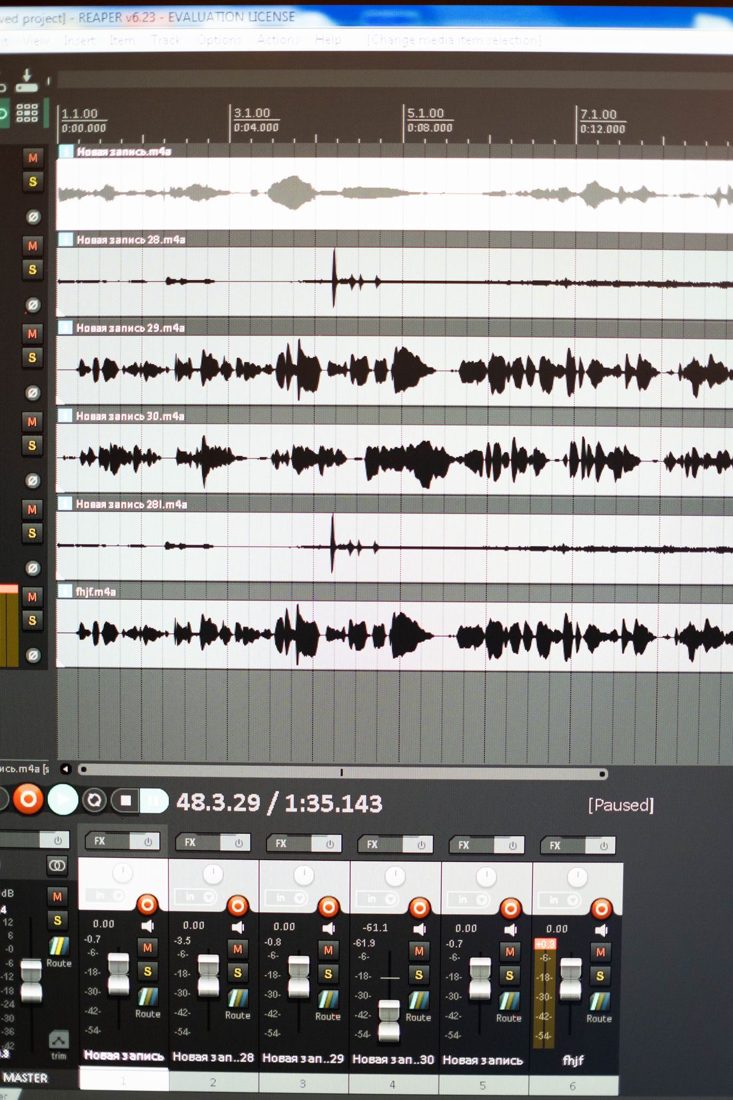
Play from a few seconds before the edit, keeping playback at a comfortable level. Decide whether the sound occurs at the end of the first clip, the beginning of the next, or both. Zoom into those boundaries. An abrupt change in the waveform can produce a click, and Audacity’s documentation describes short fades as one way of smoothing that change.
Keep an untouched copy or use an editing method you can undo. A click might also be a mouth sound or a damaged recording. If it occurs well inside a word rather than at the boundary, fading the clip edge will not address its cause.
Fade the quiet margin, not the useful syllable
Select only a small region near the affected edge and apply a gentle fade towards or away from silence. Begin conservatively and listen again. The aim is a smooth boundary, not an audible swell. If the first consonant becomes weak, shorten the fade or move the edit into a better gap.
When adjacent clips overlap, a short crossfade can blend the outgoing and incoming sound. Check the overlap for doubled syllables or a brief rise in level. Two copies of the same speech playing together are a different problem from a hard boundary; changing the fade shape alone may not fix the timing.
Check the sentence at its normal pace
Zoom back out and play the complete sentence. A join that looks elegant close up can still rush a breath or leave an awkward pause. Restore a little surrounding audio if the edit feels clipped. Keep ordinary room sound where it supports continuity rather than alternating mechanically between speech and absolute silence.
Finally, listen to the exported file at the same moment. This confirms that the edit you approved is present in the actual deliverable. If you later move either clip, revisit its fade: the previously quiet margin may now sit inside a word or overlap a different sound.
Treat the fade as a small repair to a particular boundary. Once the join plays naturally, leave the surrounding passage alone. Keeping a little editable audio on either side gives you room to adjust the rhythm later without having to rebuild the sentence from scratch.